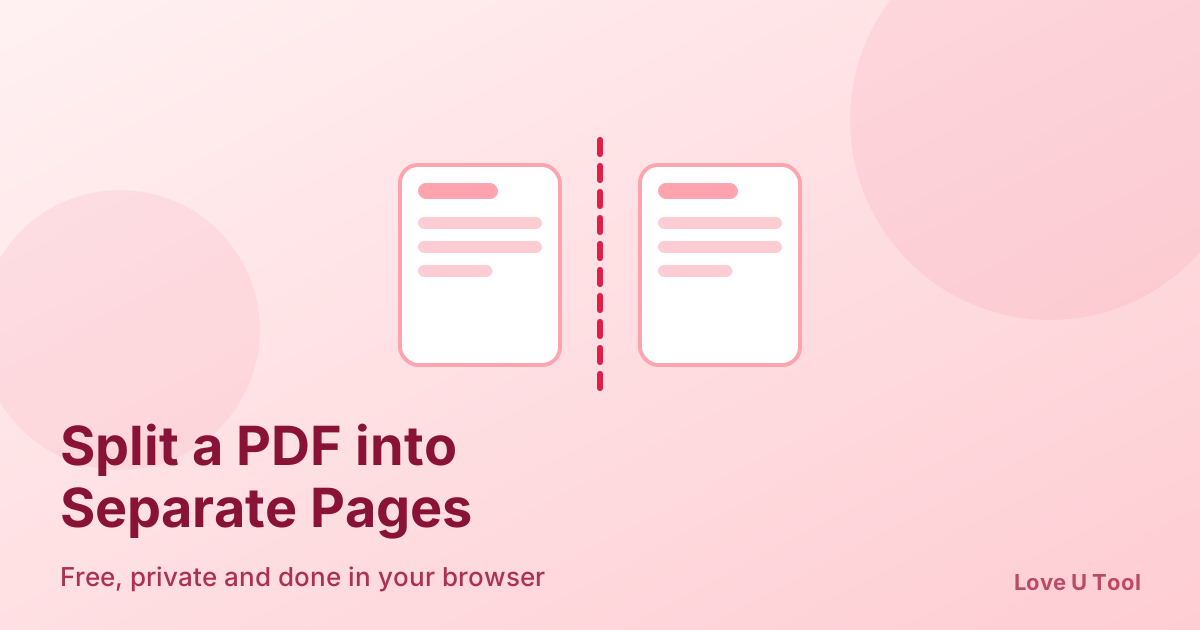
Need only a few pages from a large PDF? You can split a PDF into separate pages, extract a page range, or save just the pages you need in under a minute, with no signup and no software to install. This guide shows the exact steps and explains when each splitting option makes sense.
How to split a PDF into separate pages (step by step)
- Open the PDF Splitter on Love U Tool.
- Add the PDF you want to split.
- Choose a mode: every page as its own file, or a custom page range such as 3–8.
- Click split and download your new PDF files.
The splitting happens in your browser, so your document is not uploaded to a server. That is useful for contracts, bank statements, ID proofs, and other private files.
Three ways to split a PDF
- Every page separately: turns a 20-page PDF into 20 single-page files, handy for scanned forms and worksheets.
- Page range: extract pages like 5–12 to share one chapter or section.
- Selected pages: keep only specific pages, for example 1, 4, and 9, and leave out the rest.
Common reasons to split a PDF
- Send only the relevant pages of a long contract or report.
- Remove pages containing private or unnecessary information before sharing.
- Break a large scan into smaller files to meet upload limits.
- Extract one chapter from an ebook or study pack.
How to remove pages from a PDF
To delete pages, extract the pages you want to keep as a page range, then merge the parts back together with the PDF Merger if they are not consecutive. For example, to remove page 5 from a 10-page PDF, extract pages 1–4 and 6–10, then merge the two files in order.
After splitting: compress or convert
If a split file is still too big to email, run it through the PDF Compressor. If you need a page as a picture for a slide or social post, use PDF to JPG.
Frequently asked questions about splitting PDFs
Is it safe to split a PDF online?
It is safe when the tool works locally. Love U Tool processes the file inside your browser, so the document is not sent to any server.
Will splitting reduce the quality of my PDF?
No. Splitting copies the selected pages as they are, so text and images keep their original quality.
Can I split a password-protected PDF?
Protected files usually need to be unlocked first. Remove the password in your PDF viewer, then split the unlocked copy.
Can I do this on my phone?
Yes. Open the PDF Splitter in Safari or Chrome on your phone, choose the file from your storage, select the pages, and download the result.