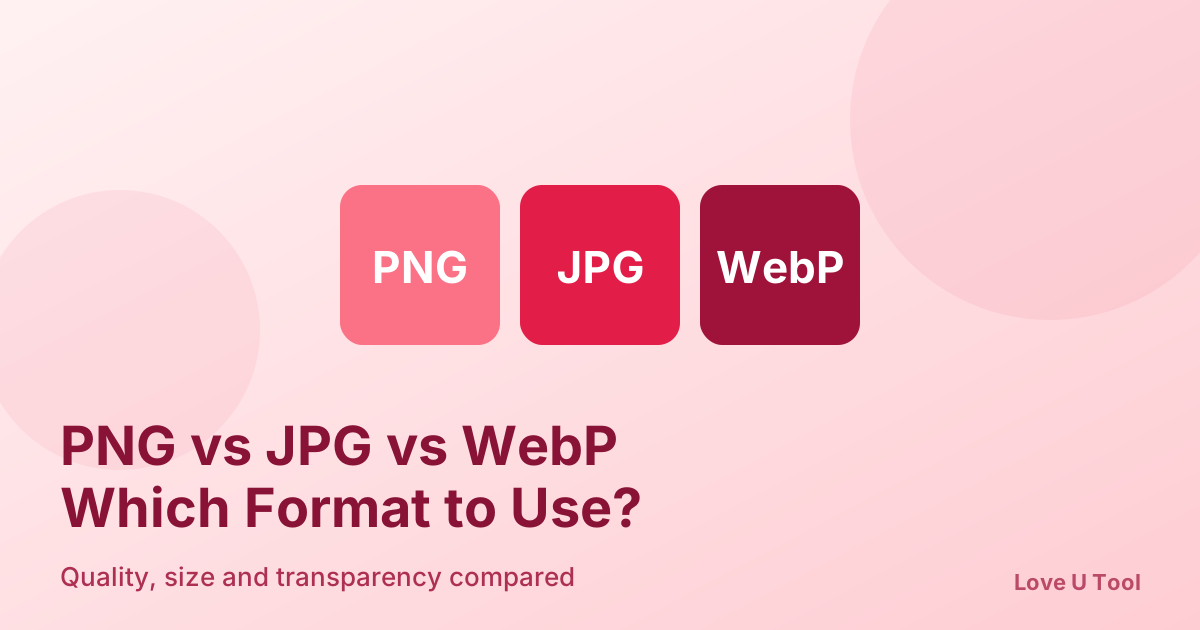
PNG, JPG, or WebP? Picking the wrong image format can make a page slow, blur your logo, or turn a transparent background white. The short version: use JPG for photos, PNG for logos and screenshots that need sharp edges or transparency, and WebP when you want the smallest file that still looks great. Here is how to choose in each situation.
PNG vs JPG vs WebP at a glance
- JPG: lossy compression, no transparency, smallest files for photographs.
- PNG: lossless compression, supports transparency, sharp text and edges, but large files for photos.
- WebP: supports lossy and lossless modes plus transparency, and is usually smaller than both JPG and PNG.
When to use JPG
JPG is built for photographs: landscapes, portraits, product shots, and anything with smooth gradients and many colours. It does not support transparency, and repeated saving at low quality adds visible blocky artifacts, so always keep your original and export a fresh copy each time.
When to use PNG
PNG is the right choice for logos, icons, diagrams, screenshots with text, and any image that needs a transparent background. Because it is lossless, edges stay crisp. The trade-off is size: a photo saved as PNG can be several times larger than the same photo as a JPG.
When to use WebP
WebP combines the strengths of both formats. Google reports that lossy WebP images are typically 25–35% smaller than comparable JPGs, and WebP also handles transparency like PNG. All major modern browsers support it, which makes it a strong default for websites. Keep a JPG or PNG copy for places that do not accept WebP, such as some forms, older software, and certain social platforms.
Which format is best for your situation?
- Blog and website photos: WebP, with JPG as a fallback.
- Logos and icons with transparency: PNG or WebP (or SVG for vector logos).
- Screenshots with text: PNG for crisp text, or lossless WebP.
- Photos for forms, job portals, and email: JPG, because it is accepted almost everywhere.
- Print: use the original high-resolution JPG or PNG, not a heavily compressed web copy.
How to convert between formats
Use the WebP Converter to switch to WebP, or the PNG to JPG and JPG to PNG tools for the classic pair. When you convert a transparent PNG to JPG, the transparent areas are filled with a solid colour (usually white), so check the result. After converting, run the file through the Image Compressor to trim it further. Everything runs in your browser, so your images are not uploaded.
Frequently asked questions about image formats
Is WebP better than JPG?
For websites, usually yes: it gives smaller files at similar visual quality and supports transparency. JPG is still the safer choice when you need maximum compatibility, such as uploads to older systems.
Does converting PNG to JPG reduce quality?
Yes, slightly, because JPG is lossy and drops transparency. For photos the difference is rarely visible, but for logos and text-heavy images PNG is the better format.
Why is my PNG so much bigger than my JPG?
PNG stores every pixel without discarding detail, which suits flat graphics but is inefficient for photos with millions of colour variations. Convert photos to JPG or WebP to cut the size sharply.